


File Explorer is one of the tools you probably use every day on Windows, but it’s easy to overlook some of its features. Here are some simple Windows 11 features and shortcuts that make managing files quicker and easier — with nothing extra to install.
Show File Name Extensions
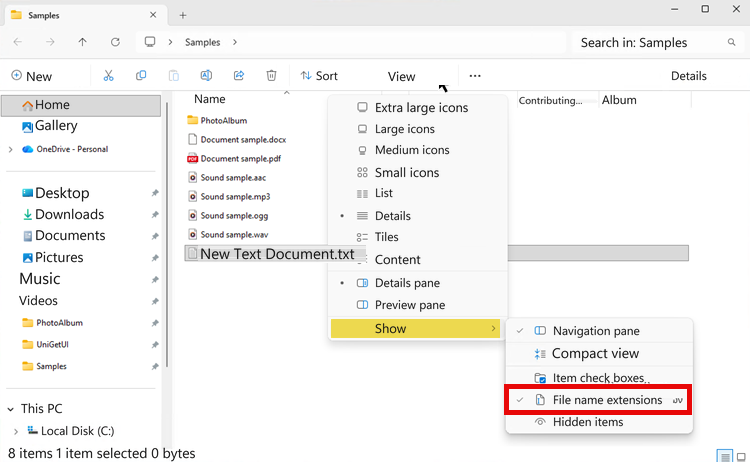
By default, Windows hides the extensions of recognized file types like .pdf, .docx and .exe. This keeps filenames looking tidy, but it can also be confusing. When you’re managing files, it’s useful to know exactly what kind of file you’re dealing with.
Showing file extensions makes it easier to identify a file’s actual type and reduces the risk of accidentally opening an executable disguised as a document.
To show them:
- Go to View → Show.
- Turn on File name extensions.
Work Faster with File Explorer Tabs
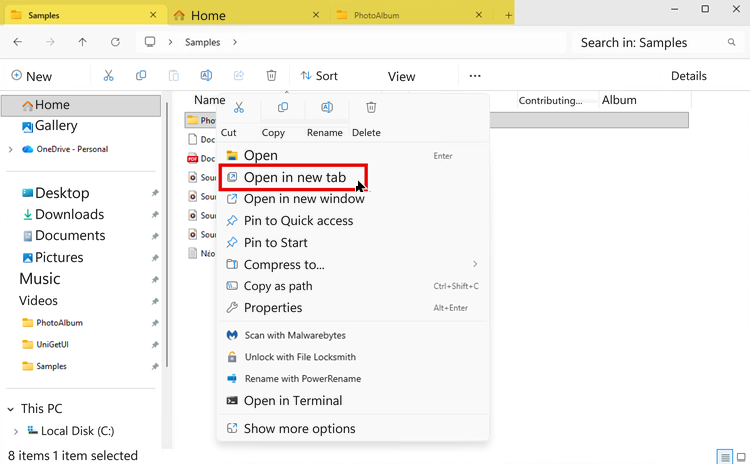
If you want several folders open at once, you don’t need a separate window for each one. File Explorer supports tabs, just like a browser, so you can keep multiple folders open in a single window.
 Make Windows 11 File Explorer Look Better With Just One ClickCustomizing the look and feel of Windows is always tempting, but Microsoft’s built-in options can be surprisingly limited. If you want more freedom, there’s a…
You might have one tab for Documents, one for Downloads and another for an external drive, then switch between them in seconds. It’s especially handy when you’re copying or moving files between folders, as it keeps the number of open windows to a minimum.
A few shortcuts make tabs much quicker to work with:
- Ctrl + T: Open a new tab.
- Ctrl + Tab: Move to the next tab.
- Ctrl + Shift + Tab: Go back to the previous tab.
- Ctrl + W: Close the current tab.
If you want more ways to manage tabs, take a look at Explorer Tab Utility, which we covered in detail in an earlier guide.
Easier Navigation
Tabs were one of the best additions to File Explorer in years. The catch is that opening a folder normally takes you away from your current location, and opening it in a new tab isn’t immediately obvious.
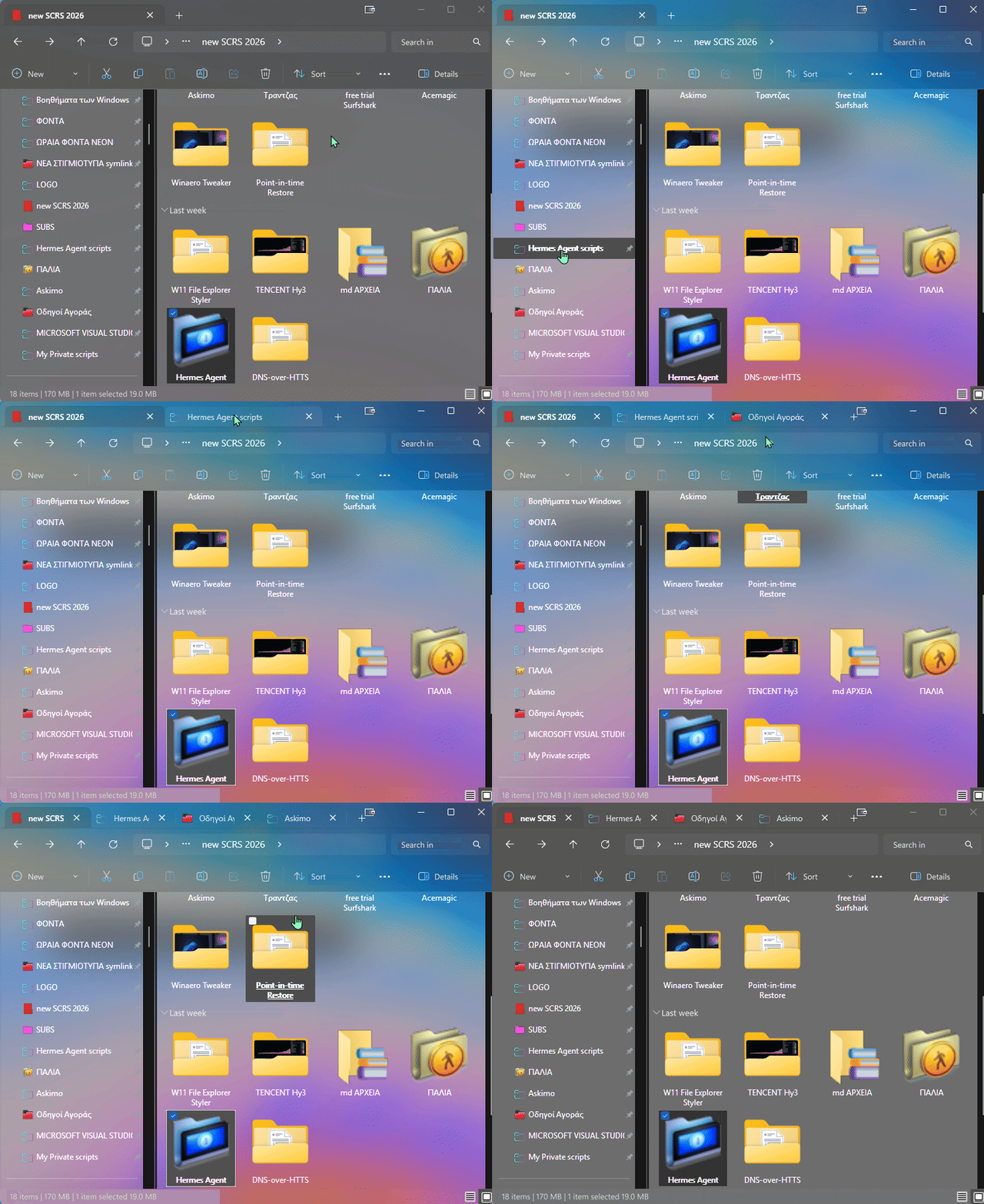
The tip: Middle-click (press the scroll wheel) any folder in the navigation pane or the main File Explorer area to open it in a new background tab. You can keep working in your current tab without interrupting what you’re doing.
Extra tips:
- You can also middle-click a notification in the bottom-right corner of the screen to dismiss it instantly, without having to click the “X”.
- The transparent look of File Explorer in the screenshots above is created using the tool featured in this guide.
Choose Where File Explorer Opens
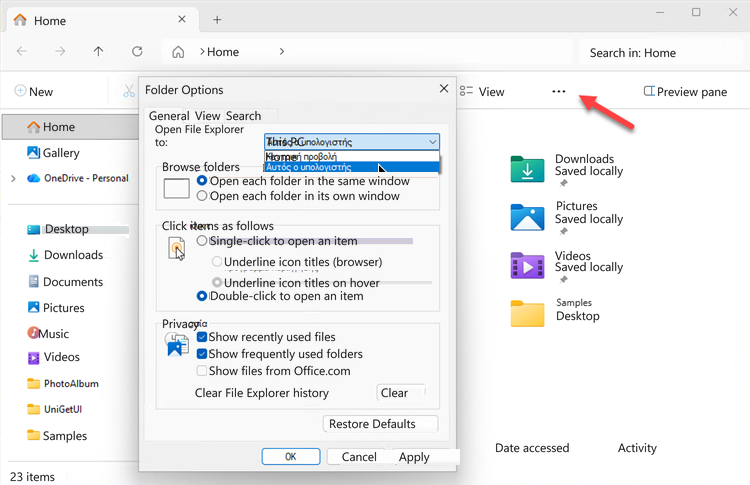
In Windows 11, File Explorer opens to the Home page by default. There, you’ll find recent files and pinned folders, which can be genuinely useful for everyday file management.
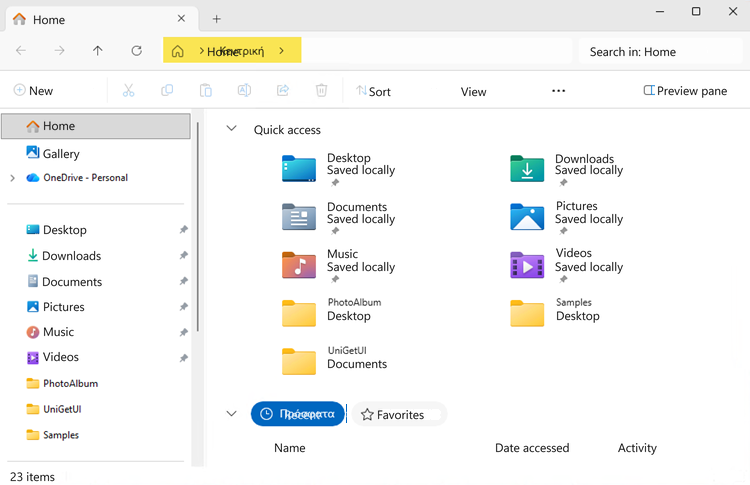
If you mostly work across different drives, partitions or external storage, you may prefer it to open directly to This PC.
This gives you quick access to all your available drives and makes it easier to move files between them.
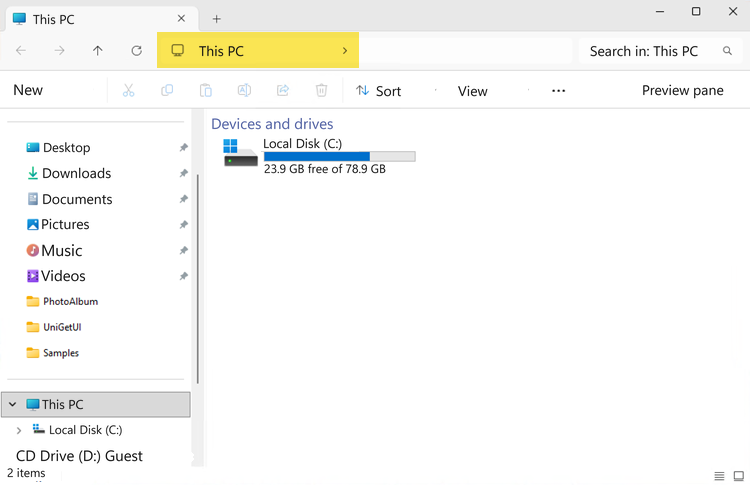
To change the setting:
- Open File Explorer.
- Click the three dots (…) on the command bar and choose Options.
- Under Open File Explorer to, select This PC.
- Click Apply, then OK to save the change.
Customize the Home Page
If you keep Home as your default view, you can customize it so the folders you use most are always within reach. This saves you from having to navigate to the same folders every day.
To keep a folder close at hand, right-click it and choose Pin to Quick access.
To remove one, right-click it and pick Unpin from Quick access.

Turn On Item Check Boxes
When selecting multiple files, you usually hold down Ctrl and click each one. There’s another, more visual way to do this, which makes selecting files much easier.
With Item check boxes enabled, a small box appears next to each file and folder. You can select multiple items simply by checking those boxes, without having to hold down Ctrl.

To turn them on:
- Open File Explorer.
- Go to View → Show.
- Enable Item check boxes.

Rename Lots of Files at Once
For more advanced batch-renaming tasks, there are dedicated tools like PowerToys. But if you just want to give a group of files the same base name, you don’t need to install anything. File Explorer can handle it right out of the box.
File Explorer can rename several selected files in one go:
- Select the files you want.
- Press F2 (on some laptops you may need Fn + F2).
- Type the new name and press Enter.
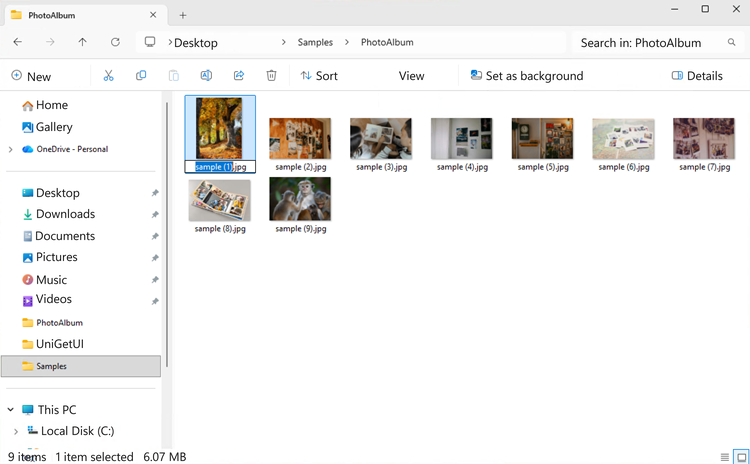
Windows uses the name you typed for the first file and adds sequential numbers to the rest.
Preview Files Without Opening Them
The Preview pane displays the contents of a selected file alongside the file list in File Explorer, so you don’t need to open it in a separate window. It’s a handy way to check a file before deciding whether to open it.

Turn it on with Alt + P, or go to:
View → Show → Preview pane.
What appears in the Preview pane depends on the file type and whether Windows has a compatible preview handler for it. Not all file formats are supported.
Copy a File’s Path
When you need to share a file’s exact location or paste its path into a command, you don’t have to type it out manually. Being able to copy a file’s path is a small but genuinely useful convenience.
Select the file or folder, then use either of these:
- Press Ctrl + Shift + C to copy the path to the clipboard.
- Right-click and choose Copy as path.
More Targeted Search
Searching in File Explorer is much more effective when you use filters instead of relying on filenames alone. If you’re working with lots of files, filters can help you find what you’re looking for much faster.
Once you start a search, you can narrow the results by date modified, file type and file size.
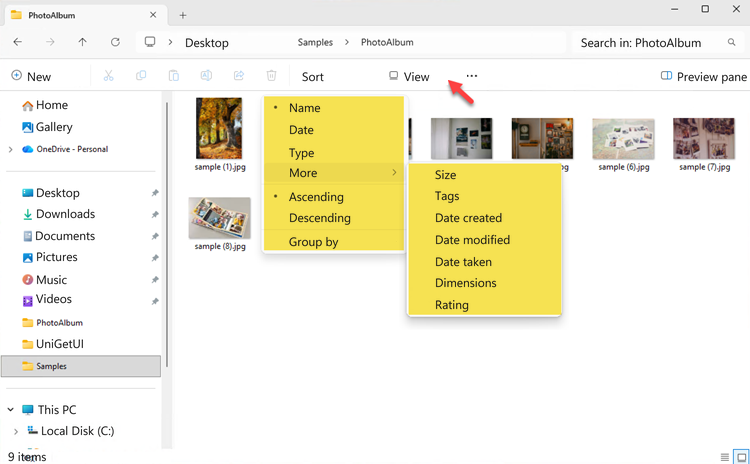
Keep in mind that the available filters — and the results themselves — can vary depending on where you’re searching.
Which File Explorer Tricks Do You Find Most Useful?
None of these features will transform the way you use Windows 11, but they can make everyday file management noticeably easier and faster.

