


It has never been easier to carry our entire library with us. Thousands of titles fit on a phone, or on an e-reader that weighs about as much as a paperback. And yet, whenever we try to move over to digital books, we keep hitting the same practical questions. Which file should I download? Why won’t the ebook open on my Kindle? Which device works with which bookstore? Let’s take a closer look at digital books, how they work, and how to manage them across different devices.
Digital books (ebooks) and file formats
Digital books, or ebooks, are books in digital format that you read on a screen rather than on paper. They can include novels, school textbooks, academic books, and comics.
With most digital books, the text automatically adjusts to your screen. You can increase the font size, choose a typeface, or change the background colour.
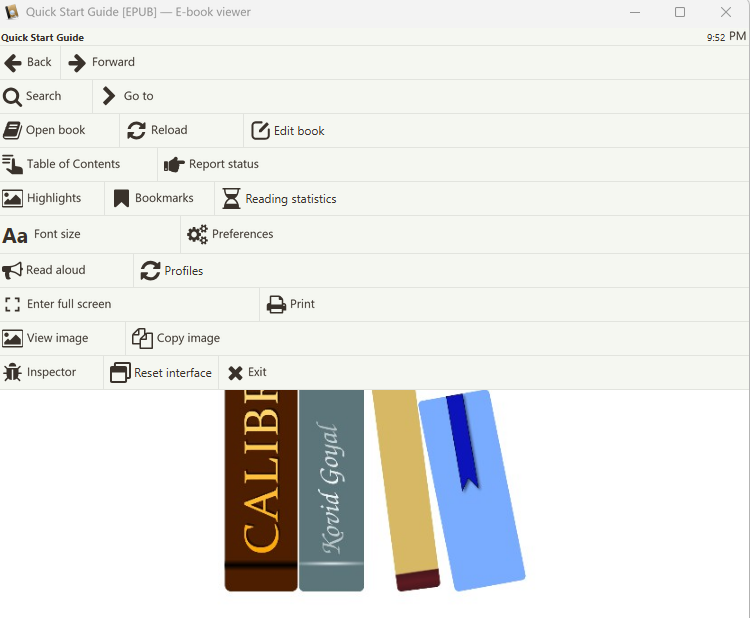
On top of that, most reading apps let us search for a word across the whole book, keep notes and highlights, and look up an unknown word in the built-in dictionary.
File formats
Digital books come in several different file formats. In practice, however, you’ll mainly encounter the following:
- EPUB: An open standard and the most flexible choice for text-heavy books. It adapts to different screen sizes and is supported by most reading devices. Whenever it’s available, this is usually the best format to choose.
- PDF: Ideal for textbooks, technical manuals, and books with tables, diagrams, or complex page layouts. The content doesn’t reflow to fit the screen, so you’ll need to zoom in and scroll frequently on smaller devices. PDFs are generally more comfortable to read on a tablet or computer.
- MOBI: Amazon’s legacy ebook format. Kindle devices can still open MOBI files, but you’ll need to transfer them via USB. Send to Kindle no longer supports this format.
- AZW3 / KFX: Amazon’s current formats, mainly for Kindle and Amazon’s apps.
- CBZ / CBR: These formats are commonly used for digital comics. They contain image files packaged in a ZIP or RAR archive and can be opened with compatible Kobo and PocketBook devices, Calibre, and dedicated comic reader apps.
What is inside an EPUB file?
Outside of Amazon’s ecosystem, most digital books come in EPUB format.
An EPUB file is essentially a ZIP archive. Inside, you’ll find XHTML files containing the text of each chapter, CSS files that control the formatting, along with images and the book cover.
You can make a copy of the file, change its extension from .epub to .zip, and open it in File Explorer. If file extensions aren’t visible, you can enable them from the View tab.
You’ll also find a package file, usually with an .opf extension. It contains the book’s metadata, including its title, author, and language, as well as the reading order of its chapters.

Because EPUB is based on web technologies, reading apps handle it much like a browser handles a web page. For example, they automatically reflow the text to fit the screen size and the font you choose.
EPUB also supports fixed layout, where every page stays exactly as the publisher designed it. Comics, illustrated children’s books, and photo albums mostly use it.
What is DRM?
DRM (Digital Rights Management) is a form of digital protection that publishers and ebook stores use to restrict how digital books can be copied and accessed. You may have come across the term in the context of video games, too.
A DRM-protected book can only be opened on devices and apps authorised with your account.
In practice, you’ll mainly encounter three types of DRM:
- Adobe DRM: Used by most ebook stores, and it requires signing in with an Adobe ID.
- Kindle DRM: Used on books purchased from Amazon. These books can only be opened on Kindle devices or in the Kindle app.
- Readium LCP: A newer, less widespread system, supported by specific apps and devices, such as Thorium Reader and PocketBook.
These DRM systems are not cross-compatible. An ebook protected with Adobe DRM won’t open on a Kindle, while a DRM-protected Amazon book won’t open on third-party e-readers.
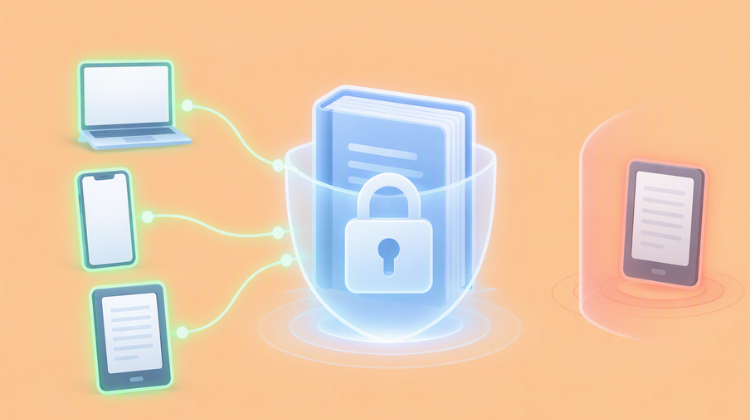
When you buy DRM-protected digital books, you’re essentially purchasing a reading licence tied to a specific ecosystem. That’s why it’s important to check a book’s format and DRM protection before buying it.
By contrast, free and legally available digital books are often DRM-free. You can open them on compatible devices and transfer them between devices without restrictions.
Where Can You Read Digital Books?
You can read digital books on almost any device with a screen. However, the reading experience varies considerably depending on the type of display.
What is an e-ink screen?
E-readers (or ebook readers) are devices made only for reading, with an electronic ink (e-ink) screen. This technology imitates printed paper as closely as it can.
An e-ink display contains millions of microcapsules, each roughly as wide as a human hair. Inside them are positively and negatively charged particles, typically white and black. An electric field moves the particles toward the surface, forming the text and images you see on the screen.
Unlike a traditional phone display, an e-ink screen doesn’t produce its own light. Instead, it reflects ambient light, much like printed paper, making it easy to read even in direct sunlight.

E-ink displays also use very little power. Once a page is displayed, the screen requires almost no power to maintain it. This is why e-readers can last for weeks on a single charge, while tablets typically need charging much more frequently.
For reading at night, most modern e-readers have front lighting. Small LEDs at the edges light the surface of the screen, instead of shining light straight into our eyes.
Colour E Ink displays are also available, including technologies such as E Ink Kaleido and E Ink Gallery. They’re useful for reading comics and illustrated books, although their colours are less vibrant than those on a tablet.
The main drawback of this technology is its refresh rate. E Ink displays refresh more slowly than conventional screens, making them unsuitable for watching videos or scrolling quickly.
Kindle, Kobo, or PocketBook?
Three brands stand out in the e-reader market. Their devices offer broadly comparable screen quality, so your choice will largely depend on the ecosystem and file formats each brand supports.
- Amazon Kindle: Amazon has the largest ebook store, with a particularly broad selection of titles in different languages. It also offers the Kindle Unlimited subscription, although availability varies by country. You can also send your own EPUB files to your Kindle library using Send to Kindle.
- Kobo: Reads EPUB directly, with no conversion, and opens books with Adobe DRM. It also has its own subscription, Kobo Plus.
- PocketBook: Supports many formats, such as EPUB, PDF, FB2, MOBI, DjVu, CBZ, and CBR, as well as books with Adobe DRM.

If you plan to buy digital books from stores that use Adobe DRM, a Kindle isn’t the right choice. Send to Kindle doesn’t accept Adobe DRM-protected files, so you won’t be able to transfer those books to your Kindle. In that case, consider a Kobo or PocketBook instead..
Reading on a Tablet or Phone
A phone is the easiest way to get started with digital books. You already carry one with you, and all you need is a free reading app.
With its larger display, a tablet is better suited to reading PDFs, comics, and textbooks, while also offering a more accurate colour experience.
The main drawback of phones and tablets is that their displays emit light, which can cause eye strain during long reading sessions. If you spend hours reading digital books, it’s worth taking a few steps to reduce eye strain.
Using a dark theme in your reading app and enabling your phone’s blue light filter (Night Light) may help make reading more comfortable. You can also turn on Focus mode to keep notifications from interrupting your reading.
Computer
A computer is useful for reading PDFs, taking study notes, and organising your digital library. However, it’s probably the least comfortable option for extended reading sessions.
Windows no longer has a built-in app for EPUB. The old Edge opened EPUB files, but that capability did not carry over to the new Edge in 2020.
To read EPUB files, you’ll need a dedicated app, as we’ll see below. PDFs, on the other hand, open directly in any modern browser.
The Best Ebook Apps for Phones and PCs
To read digital books on a phone, tablet, or computer, you’ll need a reading app. Most are free, and the best choice depends largely on where you buy your books.
- Kindle: Amazon’s reading app for Android, iPhone, and desktop. You can use it to read books purchased from the Kindle Store, as well as personal documents sent through Send to Kindle.
- Google Play Books: Available on Android, iPhone, and the web. In addition to books purchased through Google Play, you can upload your own EPUB and PDF files.
- Apple Books: Usually preinstalled on iPhone, iPad, and Mac, and it lets us read EPUB and PDF files.
- Adobe Digital Editions: Adobe’s free reading app for Windows and Mac. You’ll need it on your computer to open ebooks protected with Adobe DRM.
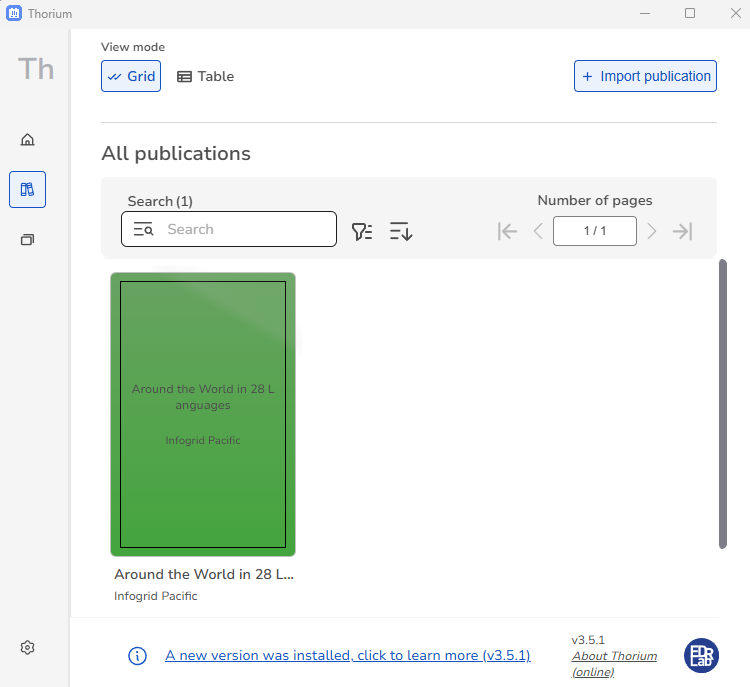
- Thorium Reader: A free, open-source reading app for Windows, Mac, and Linux. It supports EPUB, PDF, and comic book formats. It also includes a text-to-speech feature that reads books aloud using a synthetic voice.
If you read digital books on Windows, Thorium is one of the best free options for DRM-free ebooks. You can download it from the Microsoft Store or its official page. It contains no ads and doesn’t collect user data.
How to Open DRM-Protected Ebooks with Adobe Digital Editions
When you buy a digital book protected with Adobe DRM, you usually don’t download the EPUB or PDF file directly. Instead, you receive a small file with an .acsm extension. This file contains the information Adobe Digital Editions needs to download the actual book and activate your reading licence.
Adobe Digital Editions processes this file and downloads the actual ebook. If you try to open an .acsm file in an app that doesn’t support Adobe DRM, you’ll either get an error message or an empty file.
Installation and authorisation
Before getting started, you’ll need a free Adobe account (Adobe ID). If you don’t already have one, you can create one on Adobe’s website using your email address.
Next, we download Adobe Digital Editions from the official page. The app is in English.
After the installation:
- Open the app and select Help > Authorize Computer menu.
- In the window that appears, leave Adobe ID selected under eBook Vendor, enter your email address and password, and click Authorize.

You only need to authorise each computer once. One Adobe ID can authorise a limited number of computers and devices, typically up to six of each. Make sure you use the same Adobe ID on all your devices; otherwise, the books you purchased may not open on them.
Opening the ACSM file
Once you’ve completed your purchase from the ebook store:
- Download the .acsm file.
- Double-click it. Adobe Digital Editions will automatically download the book.
Alternatively, you can select File > Add to Library from within the app and choose the .acsm file.

If the file doesn’t appear in the file selection window, change the file type in the bottom-right corner to Adobe Content Server Message.
The book will now appear in your library. Double-click it to open it.
Transfer to an e-reader or phone
To transfer the book to a Kobo or PocketBook e-reader, connect the device to your computer using a USB cable. It should then appear in the left-hand panel of Adobe Digital Editions.
The app will prompt you to authorise the device using the same Adobe ID. Once authorised, simply drag the book from your library onto the device.
On a phone, you can use an app such as PocketBook Reader. You’ll also need to sign in with the same Adobe ID.
How to Organize Your Digital Book Library
As your collection grows, ebook files can end up scattered across folders, Downloads, and email attachments. Calibre is a free, open-source program that brings all your digital books together in one library..
With Calibre, you can manage your collection, edit titles and covers, convert books between formats, and transfer them to e-readers. It also includes a built-in ebook viewer.
Installation and first-time setup
To install Calibre:
- Download Calibre from the official page.
- When you launch it for the first time, the welcome wizard will ask you to choose a language and a folder for your library. You can leave the default folder selected.
- Select your e-reader’s brand and model, if you have one. This allows Calibre to determine which format to use when converting books for your device.


Adding books
To add books to your library, click Add books in the toolbar and select the files you want to import. Alternatively, you can simply drag and drop them into the Calibre window.

Calibre stores a copy of each book in your library folder, organised by author and title. This means you can safely delete the original files from your Downloads folder without losing your books.
Titles, authors, and covers
Many free ebooks have incorrect or incomplete metadata, such as titles written in the wrong alphabet or missing book covers.
To fix these issues:
- Select the book and click Edit metadata.
- In the window that opens, edit the title, author, series, and tags. Click Download metadata to retrieve the information automatically from the Internet, or use the Download button to search for a book cover.


The metadata search tends to work better for foreign-language books. For other titles, it’s often quicker to enter the information manually.
Converting to another format
To convert a book to another format, select it, click Convert books, and choose the desired output format from the top-right corner. For example, you can select EPUB.
You can also convert DOCX or TXT files into fully formatted EPUB books, complete with a cover and author information.

You can also convert EPUB files to AZW3 if you want to transfer them to a Kindle using a USB cable.
Keep in mind that Calibre cannot convert DRM-protected books. Conversion only works with unprotected files, such as DRM-free books from public-domain collections and open libraries.
Sending Books to Your E-Reader
Connect your e-reader to the computer using a USB cable, and Calibre should detect it automatically. Then select the books you want to transfer and click Send to device.

If your device doesn’t support a book’s format, Calibre will offer to convert it before transferring it. You can also delete books directly from Calibre’s device view, without having to browse through the device’s folders.
How to Send Ebooks to Kindle
Amazon’s Send to Kindle service lets you upload your own files to your Kindle library for free. Once uploaded, your books appear on all Kindle devices and apps linked to your Amazon account.
Send to Kindle supports EPUB, PDF, DOC, DOCX, TXT, RTF, HTML, and image files. It no longer supports MOBI files, password-protected documents, or DRM-protected ebooks. This means you can only send unprotected digital books, such as free ebooks from open libraries.
From the browser
The simplest way to send books to Kindle is Amazon’s Send to Kindle page.
- Sign in to your Amazon account.
- Drag and drop the file onto the page. Each file can be up to 200 MB.
- Make sure Add to your library is enabled so the book is saved to your library and becomes available on all your Kindle devices and apps.
- Click Send.
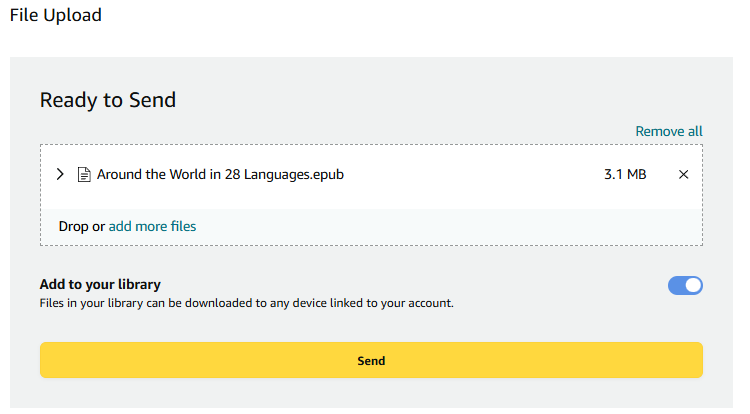
Within a few minutes, the book should appear on your Kindle device or in the Kindle app.
From Your Phone
On your phone, all you need is the Kindle app for Android or iPhone. Find the file in your file manager, long-press it, tap Share, and select Kindle.

By email
Each Kindle device and Kindle app has a unique Send to Kindle email address. If you send a book as an attachment to that address, it will appear in your Kindle library.
For security reasons, Amazon only accepts email from addresses we have approved. To approve an address:
- Sign in to your Amazon account.
- Go to Content and Devices > Preferences > Personal Document Settings.
- Click Add a new e-mail address and enter the address you want to approve.


You can attach up to 25 files to each email, with a combined size limit of 50 MB.
Amazon also has the Send to Kindle app for Windows and Mac, as well as an extension for Chrome.
How to Upload Your Own Books to Google Play Books
In addition to books purchased through Google Play, you can upload your own EPUB and PDF files to your library and access them across all your devices.
To upload PDF files, you’ll first need to enable the relevant setting:
- Open the Play Books app.
- Tap your profile picture and select Play Books settings.
- Under Uploads and downloads, tap Enable PDF upload.

You don’t need to enable this setting for EPUB files.
Then:
- Find the file in the phone’s file manager.
- Tap More > Open with. The exact wording may vary depending on your phone’s manufacturer.
- Select Play Books or Upload to Play Books.
Once uploaded, your books will appear in the Library.
You can also upload files from the Play Books page using your computer’s browser.
Backing up our digital library
When you buy DRM-protected digital books, they remain tied to your account with the store. If the store shuts down, you could lose access to your purchases.
For example, in 2019 Microsoft stopped selling ebooks in the Microsoft Store, removed the books from users’ libraries, and refunded them.
With Kindle and Google Play Books, your purchases remain linked to your account, and you can download them again as long as the services remain available. However, downloaded files are still protected by DRM and can only be opened using your account, so they don’t serve as independent backups.
You’re responsible for backing up DRM-free digital books. If you use Calibre, simply keeping a backup of your entire library folder is enough.
For books protected with Adobe DRM, make sure you keep access to both your ebook store account and your Adobe ID. It’s also worth backing up the My Digital Editions folder, where Adobe Digital Editions stores your downloaded books. These files can only be opened on devices authorised with the same Adobe ID.
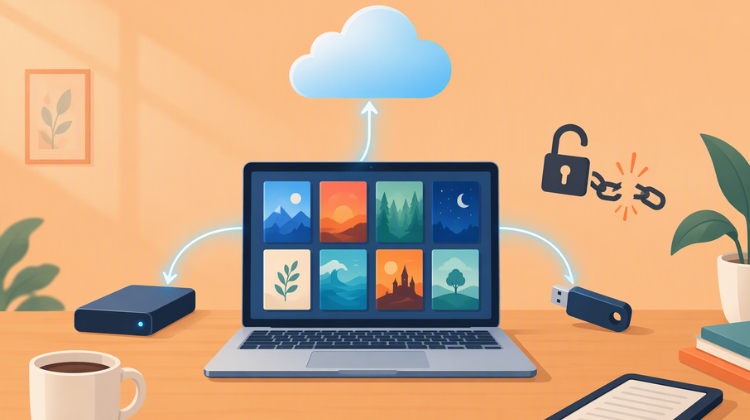
The safest approach is to follow the 3-2-1 backup rule: keep three copies of your data on two different types of storage media, with one copy stored off-site. A free cloud storage service is usually enough for this, since a library containing hundreds of EPUB files may take up only a few gigabytes. PDFs and comics, however, can require considerably more storage space.
Do you read digital books?
As you’ve seen, reading ebooks is easier than ever, as long as you choose the right file format and a device that supports the stores and services you use.
Do you read on an e-reader, on your phone, or do you still prefer paper?

